In this article
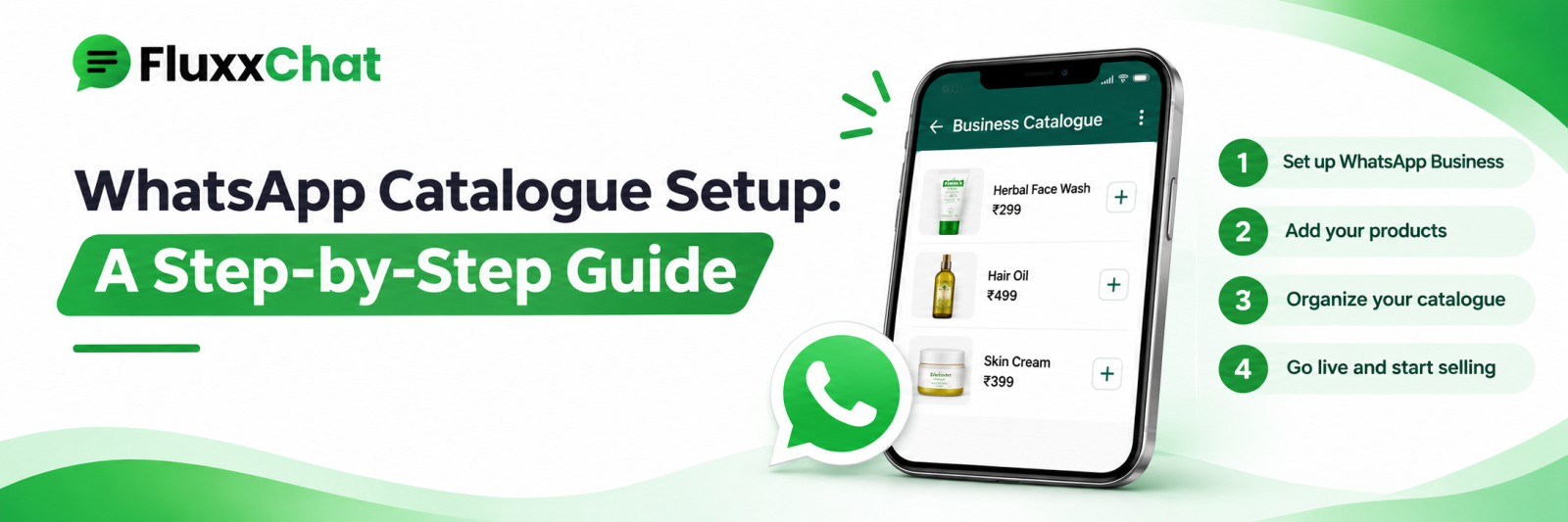
A WhatsApp catalogue turns your chat into a shop window. Instead of sending twelve photographs one at a time and typing prices after each, customers browse your products inside WhatsApp, tap what they want and send you a cart.
It is simple to set up and most businesses do it badly: blurry photos, “Item 12” as a title, and prices that stopped being accurate in August.
Meta changes commerce features, eligibility and policies, and some features differ between the WhatsApp Business app and the Business Platform. Check Meta’s current documentation before relying on specifics.
Before you start
• A WhatsApp Business account, or the Business Platform
• Products that comply with Meta’s commerce policy; restricted categories cannot be listed
• Clean product photographs
• Current prices
• A decision about who maintains it
That last one decides whether this works. A catalogue with no owner is out of date within a month.
What each product needs
Field | Get it right |
Image | Square, well lit, product filling the frame, clean background |
Name | Specific and searchable: “Cotton Saree — Blue, Gold Zari Border” not “Saree 12” |
Price | Current, and the same as you quote |
Description | Material, size, what is included, care |
Code | Your own SKU, so orders match your stock system |
Link | Product page on your website, if you have one |
Photographs decide everything
Customers judge in a second. For most small businesses, improving photographs raises enquiries more than any other change.
• Natural light near a window, or a cheap softbox
• Plain background: white, grey or a consistent surface
• Same angle and framing across the catalogue, so it looks like one shop
• Show scale where it matters: a hand holding it, or next to a known object
• Multiple angles for higher-value items
• No watermarks covering the product, no text clutter
See our product photography guide.
Organise into collections
A flat list of 200 items converts poorly. Group them:
• By category: sarees, kurtis, dupattas
• By occasion: wedding, daily wear, festive
• By price band: under ₹1,000, ₹1,000–3,000
• New arrivals, which deserves its own collection and keeps regulars browsing
Collections make sharing easier too: you can send a customer exactly the relevant group instead of the whole catalogue.
Sharing
• Share the whole catalogue link
• Share a single product to a specific customer
• Share a collection
• Put the catalogue link in your Instagram bio, auto-reply, website and QR codes
• Include it in your welcome message
A customer asking “what do you have in cotton?” should receive a collection link in five seconds, not fourteen photographs.
Carts and orders
Customers can add items and send you a cart as a message. That gives you a structured order instead of a scroll of “this one and that one and the blue one”.
When a cart arrives:
1. Confirm availability of each item
2. Send a clear order summary: items, quantities, total, delivery charge, grand total
3. Send a payment link or UPI
4. Confirm receipt and dispatch date
See our payments in chat guide and WhatsApp commerce guide.
Keep it current
The most common catalogue failure is staleness.
• Review prices monthly, and immediately when they change
• Hide or remove sold-out items; “sorry, that’s gone” after a customer chose it is the worst moment to say it
• Add new arrivals weekly if you are a fashion or lifestyle business
• Archive seasonal items when the season ends
• Assign one person, with a fixed day
If your stock changes constantly, consider syncing the catalogue from your inventory system rather than updating by hand. See our API integration guide.
What cannot be listed
Meta’s commerce policy prohibits a range of categories, which has included alcohol, tobacco, medical and healthcare products, weapons, animals, adult products and certain services, among others. The list changes.
If your products are in a restricted category, a catalogue may be rejected or your account actioned. Check the current policy before building one, and use a website catalogue instead where WhatsApp does not permit it.
Combine with automation
The catalogue becomes far more useful behind a keyword:
Customer: “price?” Auto-reply: “Here’s our full catalogue 👇 [link]. Which one are you looking at? I’ll check availability.”
And from Instagram: a comment-to-DM keyword that sends the catalogue link straight into the DM. See our comment-to-DM guide.
Measure
Metric | Why |
Catalogue views | Interest |
Most-viewed products | What to stock and promote |
Carts received | Buying intent |
Cart-to-order conversion | Where the drop-off is |
Products viewed but never ordered | Price or photo problem |
Products with many views and no orders are telling you something specific: usually the price, the photograph, or a missing detail like size.
Frequently asked questions
Is the catalogue free? Setting one up carries no listing charge. Messaging costs on the Business Platform are separate.
How many products can I list? There are limits, and they change. For usability, keep the active catalogue focused rather than exhaustive.
Should I use a catalogue or send a PDF? A catalogue. PDFs are heavy, go stale, and cannot be browsed or added to a cart.
Ready to automate WhatsApp and Instagram?
Start with FluxxChat: campaigns, chatbot and a shared inbox for your team.
Get started free